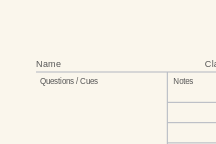
Paper that starts the way you like
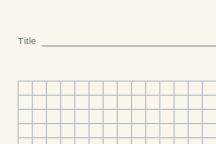
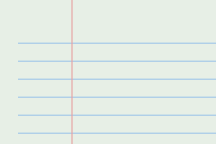
Notability opens new notes on whatever paper you have chosen, and a good page makes the difference between notes you enjoy writing and notes you never look at again. These ruled pages are made to the screen of your iPad, with the spacing, colour and an optional header all chosen before you download.
Eight millimetre lines
The default spacing is 8 mm, a comfortable width for ordinary handwriting with a fine pencil tip. If you write bigger or smaller you can switch to quarter-inch, 9/32 inch or 11/32 inch ruling. A margin line one inch from the left edge is on by default and can be moved or switched off, and a second line can be added on the right for a margin on both sides.
Colours that suit different subjects
Blush is the default, and the same page is available in white, cream, sand, sage, mist blue and lavender. Using one colour per subject makes a stack of notes easy to scan, and the dark background gives you a page that is gentle on tired eyes at night. Tick the header option to add a title and date line, with the ruling starting underneath.
Getting the file into Notability
Download the PDF to the Files app on your iPad. To use it as a template, import the file into Notability and create a template from the page. Notability uses only the first page of a PDF for a template, so keep the page count at one. If you would rather have a whole notebook of ruled pages, choose a higher count and import the PDF as a note.
Want a different layout?
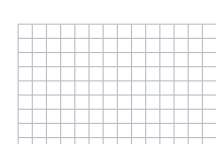
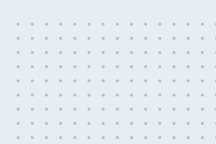
The same sizes and colours are available for graph paper, Cornell notes and lined paper, and the GoodNotes template hub lists them together. Notability is a trademark of its owner, and this site is independent of it.